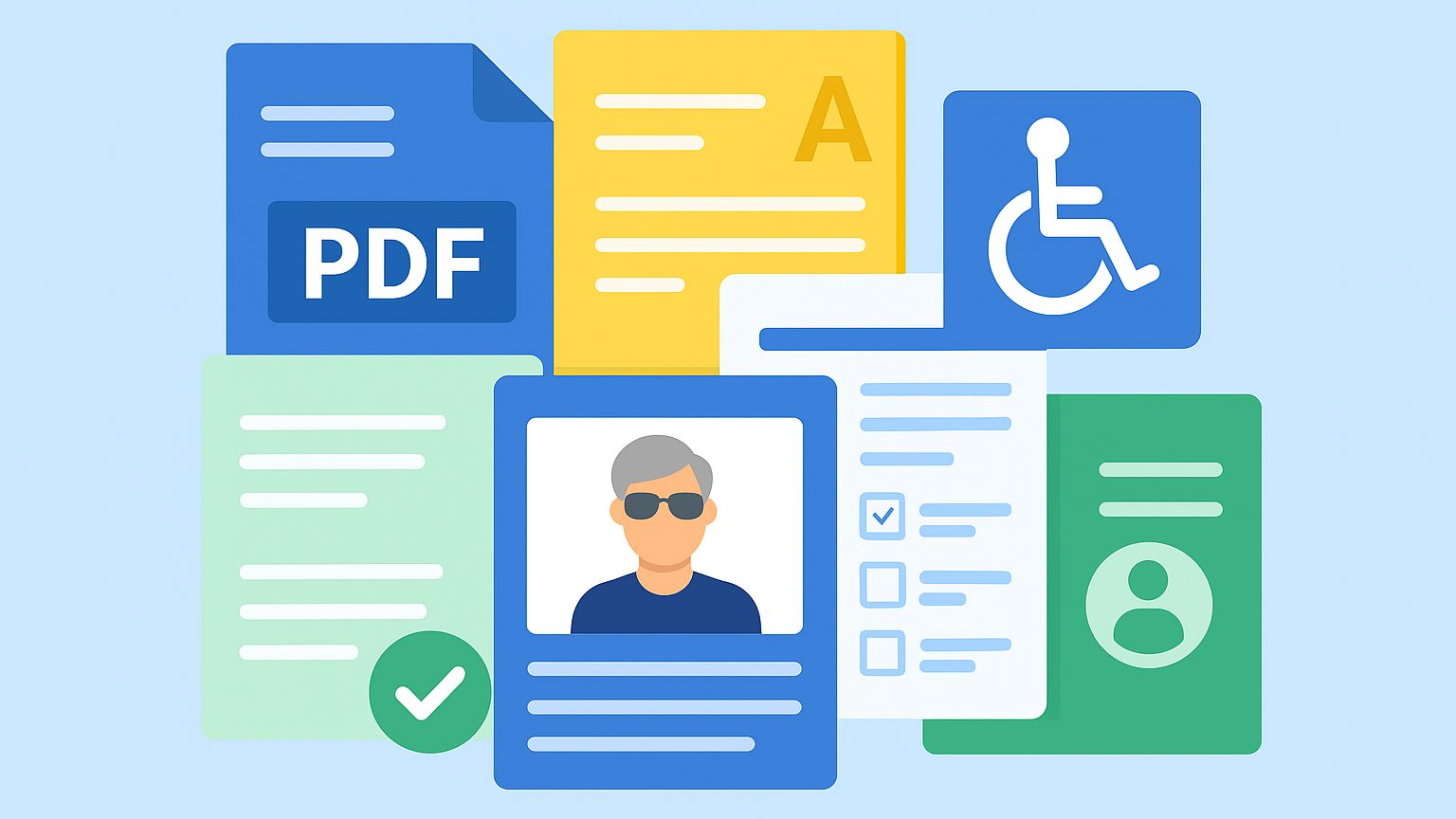
Many organizations are transitioning to digital documentation—including forms, handbooks, reports, newsletters, applications, instructions, brochures, and flyers—primarily to enhance efficiency, reduce costs, and save time. While this shift is convenient for many, it can unintentionally create barriers for people who rely on accessible and well-structured documents to receive the same information.
However, one crucial detail is often missed: Not everyone can access digital documents the same way.
People with disabilities and older adults need digital documents to be structured correctly so they can read, complete, and navigate them without barriers. When documents aren’t accessible, it can be frustrating—or even impossible—for them to access important information.
The Aging Population Is Growing Fast
The number of older adults in the U.S. is increasing every year.
- In 2020, there were about 56 million adults aged 65+
- By 2050, that number is expected to exceed 80 million
As people age, natural changes in vision, mobility, and memory occur. Tasks that were once simple—reading small text, clicking tiny icons, or navigating a complex PDF—become more challenging.
Organizations of all sizes must consider accessibility, including:
- Schools
- Nonprofits
- Government agencies
- Businesses and corporations
How People With Vision Loss Read Digital Documents
Users who are blind or have low vision often rely on screen readers (e.g. JAWS and NVDA) — software that reads text out loud and lets users navigate a document using a keyboard instead of a mouse.
For screen readers to work correctly, documents must be tagged and structured with:
- Proper headings
- Alt-text for images
- Correct reading order
- Tagged content (especially PDFs)
Without these, a screen reader may read text out of order, skip key sections, or miss important instructions entirely.
Accessibility Matters for Seniors Facing Physical Limitations
Many older adults may not use assistive technology, but they may experience physical conditions that make navigating digital files difficult, including:
- Arthritis
- Tremors
- Reduced grip strength
- Limited hand or finger mobility
These challenges make using a mouse difficult, so many seniors rely on keyboard-only navigation, such as:
- Tab to move forward through fields
- Shift + Tab to go backward
- Enter or Space to select buttons or checkboxes
If a PDF or form isn’t created with keyboard navigation in mind, it may:
- Skip fields
- Jump out of order
- Trap the user on a page
Real-World Example
Imagine a local library posts a flyer online advertising a free community event—like a storytime, wellness workshop, or educational seminar.
If the flyer is uploaded as an image-only PDF:
- A person who is blind cannot access the event details because their screen reader can’t read images without text descriptions.
If the registration link or form isn’t keyboard-friendly:
- Seniors or people with mobility limitations may struggle to sign up.
And if the PDF is not structured correctly:
- Critical details like the date, time, or location may be hidden or skipped.
Accessibility barriers prevent community members from participating—even when the event is free and open to everyone.
Quick Accessibility Tool
Before sharing any PDF, take a moment to check accessibility using this free accessibility checklist:
➡️ Download Our Free PDF Accessibility Checker
Accessibility = Inclusion
Accessible documents communicate one powerful message:
“We value everyone’s ability to participate.”
Accessible documents allow organizations to:
- Save time
- Reduce costs
- Streamline processes
- Improve efficiency
- Reach more people
Need Help Making Your Existing PDFs Accessible?
We support:
- Nonprofits
- Schools and universities
- Government programs
- Small businesses and corporations
- Content Creators
We take your existing documents and make them accessible for:
- Screen reader users
- Keyboard-only users
- Seniors with mobility limitations
📩 Learn more or request our services by visiting our website: Thornton Consulting Firm LLC
Let’s remove the digital barriers — together.
#accessibility #pdfremediation #a11y #barrierfree #digitalinclusion #seniorintech #accessbilitymatters #DigitalAccessibility #DocumentAccessibility #WCAG #Section508

